

If you’ve ever unboxed your Fire TV Stick and found yourself staring blankly at your TV wondering which end goes where—don’t worry. You’re not alone. The fire tv stick setup process can seem intimidating at first, but with a few smart moves, you can turn your living room into a full-blown digital media hub in minutes.
This guide breaks down everything you need to know to complete your fire tv stick setup like a pro, from connection to optimization, plus a few tips to make your streaming smoother than ever.
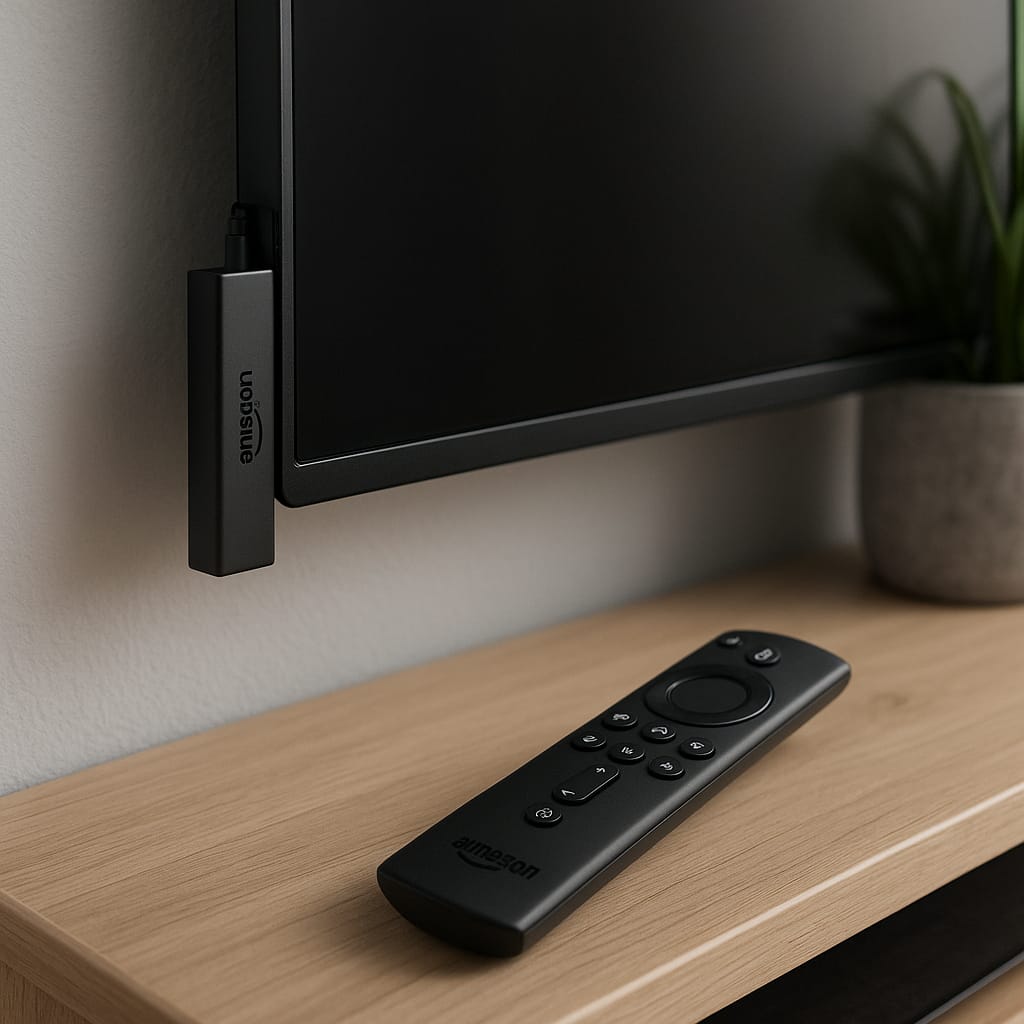
Fire TV Stick Setup: 7 Expert-Proven Tips for the Ultimate Streaming Experience
1. Start with the Right Equipment
Before diving into your fire tv stick setup, make sure you’ve got all the essentials: your Fire TV Stick, the power adapter, HDMI extension (if needed), and the included remote. You’ll also want a strong Wi-Fi connection and a display with an available HDMI port. It sounds obvious, but you’d be amazed how many people start their streaming journey with the TV still unplugged.
2. Connect and Configure
Plug the Fire TV Stick into an HDMI port, connect the power, and switch to the correct input channel. The device will boot up automatically. Follow the on-screen prompts to select your language, connect to Wi-Fi, and log in with your Amazon account. Once connected, your fire tv stick setup will begin syncing updates and preparing your home screen.
If you hit a snag with the network setup, double-check your wireless connection strength. Fire TV devices thrive on stable Wi-Fi—especially for 4K streaming.
3. Optimize Display and Audio Settings
Your Fire TV Stick isn’t just a streaming device; it’s a small but mighty piece of tech capable of beautiful high-definition and 4K playback. During your fire tv stick setup, navigate to Settings → Display & Audio and make sure resolution is set to Auto. This allows the stick to automatically choose the best output for your TV.
If you’ve got a soundbar or home theater system, set your audio output to Dolby Digital Plus for richer sound. You’ll instantly feel the difference when streaming from services like Netflix or Prime Video.
4. Install and Organize Your Apps
Once your fire tv stick setup is complete, it’s time to make it personal. Head to the Amazon Appstore and download your favorite streaming apps—Disney+, Netflix, YouTube, or whatever you fancy. Use the “Move to front” option in the menu to organize them for quick access.
A tip from the pros: install Downloader or FileLinked for sideloading apps not available in the store. Just make sure you only use verified sources.
5. Pair Your Remote Properly
A surprisingly common hiccup in fire tv stick setup is remote pairing. If the remote doesn’t respond, hold the Home button for 10 seconds to force-pair it. You can also use the Fire TV mobile app as a backup remote until things sync up. It’s free and works over Wi-Fi.
6. Add Parental Controls and Profiles
If you’re setting up a family device, don’t skip this step. Navigate to Settings → Preferences → Parental Controls to set a PIN and restrict content by rating. During your fire tv stick setup, you can also add separate user profiles to personalize recommendations for different viewers.
7. Expand Your Streaming World
Once your device is running smoothly, explore the vast possibilities beyond basic streaming. Platforms like AllShareMedia and EliteStreams are transforming how users access international sports and worldwide shows through premium IPTV options. Integrating these with your fire tv stick setup gives you access to channels and live events far beyond standard apps.
Case Study: A Home Setup that Just Works
Take the example of a user who recently completed a fire tv stick setup using a mid-range smart TV and basic Wi-Fi. After enabling adaptive resolution and limiting background apps, their buffering dropped by 70%. It’s proof that even small tweaks can lead to huge performance improvements.
Frequently Asked Questions
Q: How long does the fire tv stick setup take?
Usually 5–10 minutes, depending on your Wi-Fi speed and any updates that need to install.
Q: Do I need an Amazon Prime account to use it?
No. You can use a standard Amazon account and still install other apps like YouTube, Netflix, and Spotify.
Q: Can I use it on multiple TVs?
Yes, but you’ll need to unplug and move it, or buy multiple devices. Your login will carry over.
Final Thoughts
The fire tv stick setup process isn’t just about getting the screen to light up—it’s about creating a smarter, faster, and more connected entertainment experience. Once you’ve got it configured, you’ll have access to global content, voice controls, and streaming power that rivals dedicated smart TVs.
For more insights, explore Jonathan Summers’ services for home tech optimization or check out the latest updates on BBC, TechCrunch, and IMDB for entertainment trends.